Home Blog Page 106

How to Change Profile Pic on Twitter Mobile – Twitter Profile Picture

0

How can I change my profile photo on Twitter? In this article, you can learn how to change profile pic on the Twitter mobile app. On the contrary, there are two modes of identification on twitter which include your username and your profile photo. But the most essential way someone can easily recognize your Twitter account is through your profile picture. In the meantime, the Twitter profile picture is a mode of identification in which people can easily identify your account through the image uploaded on your profile page.
How to Change Profile Pic on Twitter Mobile - Twitter Profile Picture

Furthermore, Twitter is one of the biggest social networking sites which is registered by millions of users. Many people especially celebrities connect with their fans through Twitter and also businesses make use of it to advertise their business online. The platform allows you to share your thoughts and ideas with millions of your followers. It’s said to be the most fun and entertaining site than Facebook. However, after creating your account, it’s important to add a profile picture to your Twitter account. This makes it easier to stand out among others and also for your tweet to be more credible. However, you can add, remove, or change your Twitter profile pic on the web or mobile app.

How to Change Twitter Profile Picture on Mobile

On the contrary, the Twitter mobile app makes it very simple to customize your profile picture which you can add a unique profile, header image, name, and lots more. Install or download the Twitter mobile app before you can change or add a new image to your profile.

To Add a New Profile to Twitter:

Step 1: Open the Twitter App on your mobile phone.
How to Change Profile Pic on Twitter Mobile

Step 2: Navigate your “Profile” or the Profile Picture avatar” icon.
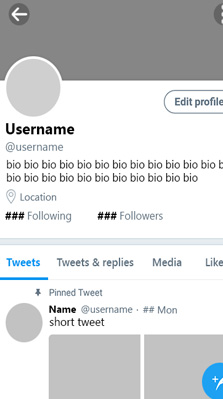
How to Change Profile Pic on Twitter Mobile

Step 3: click on the setting “Edit Profile”.
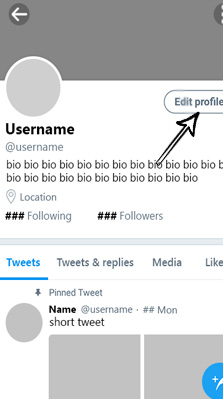
How to Change Profile Pic on Twitter Mobile

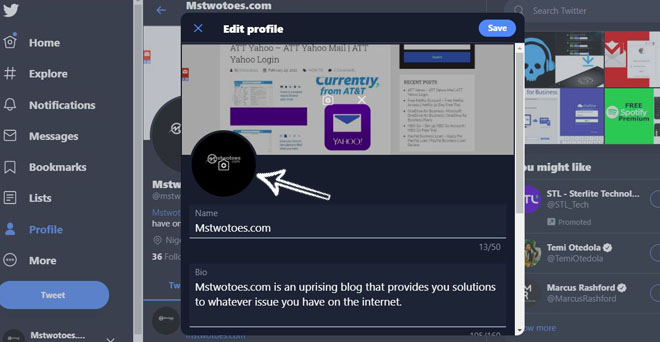
Step 4: Next, click on the Camera icon and add your picture.
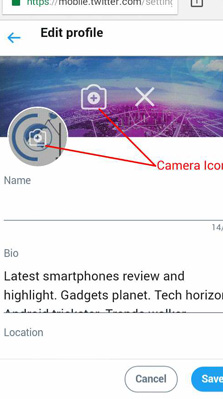
How to Change Profile Pic on Twitter Mobile

Step 5: Click Save.

How to Change Profile Pic on Twitter Mobile

Also, the Twitter profile picture which can also be called the Twitter avatar requires a profile picture size of 400×400 pixels, and the header photo size is 1500×500. Keep in mind, you can add a Twitter cover photo or header picture by clicking the second camera icon.

How to Change Profile Pic on Twitter Mobile

On the contrary, there is no difference in the step of changing a profile or photo Twitter. In other to change your photo from the Twitter avatar icon, on the web. You need to use a secure web browser and the following instruction below:

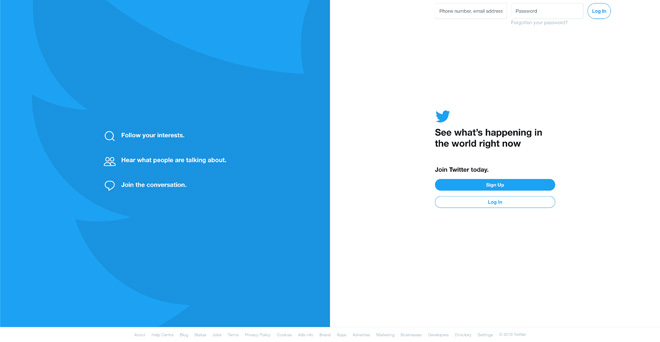
Step 1: Visit www.twitter.com on your web browser. on your mobile phone.

Twitter Login Page

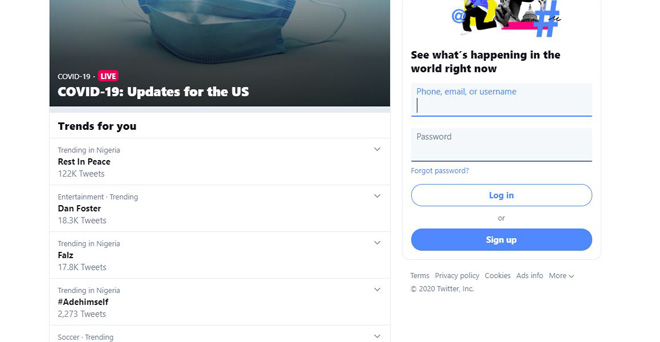
Step 2: Sign in to your Twitter account if you need to.

Sign in to your Twitter account if you need to

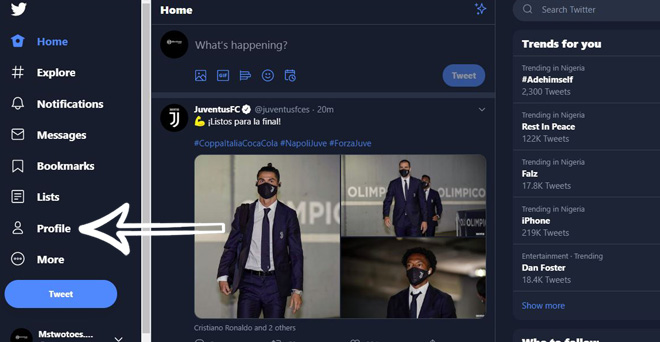
Step 3: Navigate your “Profile” or the Profile Picture avatar” on the status bar.

Navigate your “Profile” or the Profile Picture avatar” on the status bar.

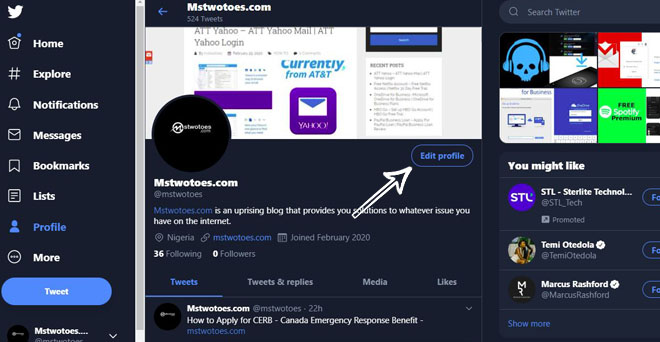
Step 3: click on the setting “Edit Profile”.

click on the setting “Edit Profile”

Step 4: Next, click on the Camera icon and add your picture.

click on the Camera icon and add your picture.

Step 5: Click Save.
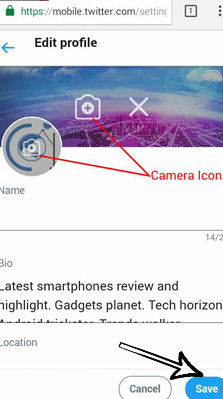
In summary, click the camera icon to change your profile photo and also to change your header photo from the computer. That’s all you need to know when changing your profile picture and header photo on the Android, iOS, and computer with the Twitter App or website.
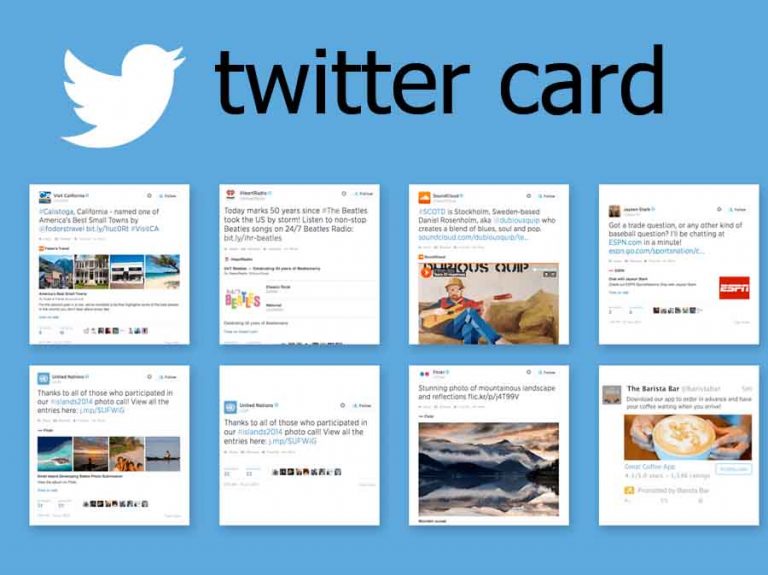
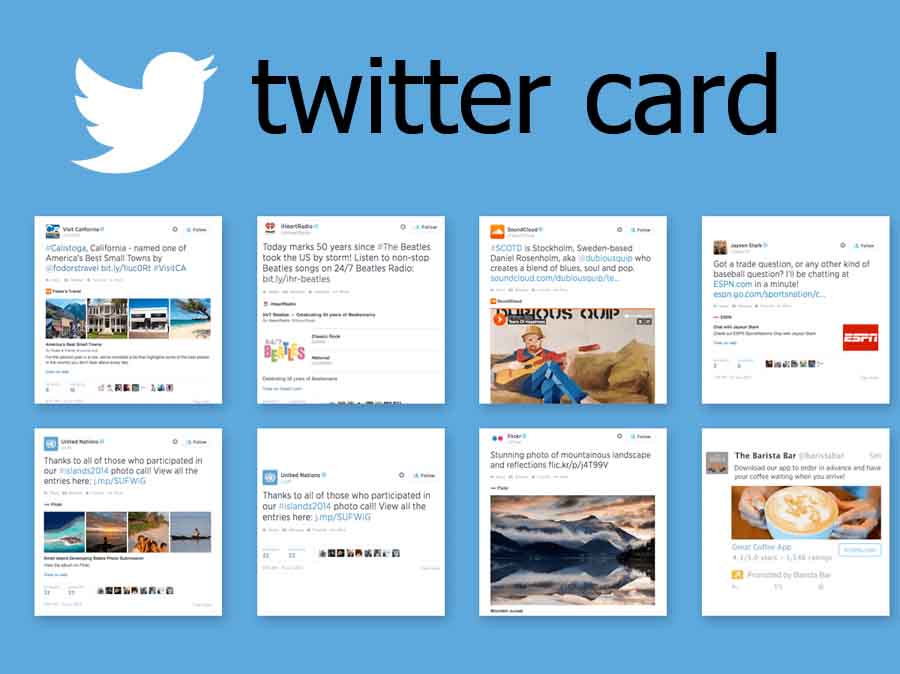
Twitter Card – How to Create a Twitter Card | Twitter Card Validator

0

What is Twitter card’s and how can I create a Twitter card? Probably, you can come across the Twitter Cards from someone or seen it on the internet. In this article, you can learn everything about Twitter Card and also how you can get started with features. Apparently, Twitter has more than 300 million active users and many businesses see it as a potent marketing platform to showcase their brands and services. However, Twitter introduces Twitter Cards which allows you to link quality videos, photos, and other media content to Tweets in other to help drive traffic to your business.

Twitter Card - How to Create a Twitter Card | Twitter Card Validator

On the contrary, for businesses to have more experience using Twitter has the means to showcase their business presence online. The platform offers different kinds of cards that actually help to show content in different formats such as previews, play video, and more. So as to increase the way people engage in your site as well as to drive traffic to your sites. Keep in mind, the type of the Twitter card consider as tools to help to drive engagement from your Tweet to your website.

Twitter Card Types – List of Tool to Drive Engagement from your Tweets

The method by which Twitter Card’s work is pretty simple. Where you simply add a few words to your makeup webpage and when users tweet to the link to your content will have access to the Card. However, there are four type of Card which have different functionality and experiences in which it built to perform.

  • Summary Card: this showcases content such as title, description and thumbnail.
  • Summary Card with Large Image: this is the same thing as the Summary Cars which comes with a prominent featured image.
  • App Card: this card provides you with a direct download to a mobile app.
  • Player Card: with this card, you can showcase content like video, audio, and media.

These are the following type of Cards and you can learn how to get started with the Card so as to increase the engagement on your website. You can view the step-by-step procedure to use the Card meta tags for set up your business engagement.

How to Create a Twitter Card

One of the fascinating tools is the Twitter card validator which allows you to text your Card. For instance, when you put your Card URL on the Twitter Card Validator. This actually tests the card to see if it effective to use. Here are the steps to get started:

To Create a Twitter Card:

  • Select the preferable card you want to implement.
  • Then you can enter current meta tags to the page.
  • Afterward, you can visit the Card Validator https://cards-dev.twitter.com/validator  and enter the URL to your card metadata.
  • After you have texted the card in the validator, then Twitter Card is set.

In addition, you can then Tweet the URL to see if the Card appears below your tweet. This will eventually help you to drive thousands of traffic from twitter straight to your website for people to engage in your services or brands.

About the Drive App Downloads from your Tweets

One of the interesting features of the Twitter card is the App Card which actually helps to direct traffic for people to download your app from your tweets. In other words, in the effort the help drives more engagement to your platform, the App Card allows you to boost your app presence to millions of users. For people to be able to download your application from mobile apps.

Google Quick Draw – How to Play Google Quick Draw | Quick Draw with Google

0

What is the Quick Draw? How can I use the draw quick with Google? On the contrary, Google introduces machine learning research that provides a flexible way to learn things through drawings of doodling. Google actually provides a feature where neural networks can be able to learn to recognize doodling by creating or drawing your very own Doodle. In the meantime, Quick Draw is apparently an online game platform that is owned by Google. That allows you to create a challenge for you to draw an image or picture of an object or idea within a few seconds. Learn how to Play Google Quick Draw on mobile or PC.

Google Quick Draw - How to Play Google Quick Draw | Quick Draw with Google

Furthermore, the “Quick Draw!” with Google online game allows you to put your creative idea into the neural network artificial intelligence. In other to guess what kinds of drawing your image represents. As a matter of fact, the Quick Draw with Google is an interactive and educational game. Where you can draw an image or object and the AI suggests the image you’re drawing. For instance, when you draw an image using the Quick Draw on Google. The neural network will then try to suggest or guess the drawing thereby telling you what the image looks like. However, there are visit stages of google quick draw in which you can play the drawing game online.

Google Quick Draw – How to Use the Quick Draw on Google

On the contrary, the Quick Draw is a fun and friendly game which is best recommended for kids to help build their creative mind. However, the platform is integrated with AI which actually guesses the object you draw or each drawing of yours. Actually, this also helps the AI to increase its ability to be able to guess objects correctly in the feature. However, the online drawing game is also similar to Pictionary where players only have a limited number of seconds to be able to draw the image or pass the challenge giving to you.

To Play the Google Drawing Game:

  • Go to https://quickdraw.withgoogle.com/ on your web browser.
  • Then, click Let’s Draw and you will see the image you’re asked to draw.
  • To start the drawing, you can click Got It and then draw the image.

In addition, you can continue drawing until the AI is able to guess what you draw. Afterward, you can go to the next stage to draw another object. However, there are 6 stages you need to pass and if you exhaust the time limits, you have failed and need to try again. At the top right corner, you can access the eraser to clean your drawing or click the forward icon to move to another stage.

Google AutoDraw – How to Draw on AutoDraw

On the contrary, this particular aspect of the Google Draw Quick apparently refers to as fast draw Google and it’s an AI experiment. The basic concept of playing the Google AutoDrawis based on how far you can go in your drawing, whereby the faster you click the more object are placed to draw.

How to use the AutoDraw:

  • When you started the doodling, the AutoDraw then suggest tools to use.
  • You can use the Draw tool to draw just a small image you can’t actually get.
  • This you will see image at the top that’s similar to the image you draw
  • Then, you can add colors, text, and also use the shape tool to create your ideal image.

The AutoDraw another advanced feature of the Quick Draw which you can play another in other to build your creativity in drawing.  However, you can start by visiting the www.autodraw.com and start with Google AutoDraw.

Quick Draw – Google Santa Tracker

This is another area of the Quick Draw on google which actually helps to increase the ability of the Tensor to recognize images. The Tensor Santa’s Machine Learning robot actually needs assistance in learning how to decode letters sent to him from children from around the world. This requires the drawing of a picture of a holiday word on the screen and Tensor will let you know what he sees. The more holiday picture you draw the smarter Tensor will become. How start you can visit the web page https://santatracker.google.com/speedsketch.html and click Start

How to Screenshot on Mac – How to Take Screenshot on Mac | Screenshot on Mac Shortcut

0

How do you screenshot on Mac or where do you go to for screenshot on Mac shortcut? On the contrary, most people find it difficult to take a screen capture on Mac, especially on Windows operating system. Actually, the methods of taking a screenshot on the mobile phone are actually different from the desktop computer. Since there is no power button and down volume to take a screenshot on the Mac or Windows. But there’s a hidden feature or shortcut keyboard on the Mac that allows you to take a screenshot of images.

How to Screenshot on Mac - How to Take Screenshot on Mac | Screenshot on Mac Shortcut

Furthermore, if you need to use a regular screenshot to create a snip on your MacBook or Mac Pro. There are certain screenshots on Mac shortcuts where you can take a snip on without keyboard. Likewise, you can also take a snip through the use of a keyboard. For the windows device, you can use the snipping tool to create an image on the screen. However, for the MacBook or Mac Pro, we will show you some techniques you can use on how to screen grab on a Mac.

How to Take Screenshot on Mac Keyboard – Full Screenshot

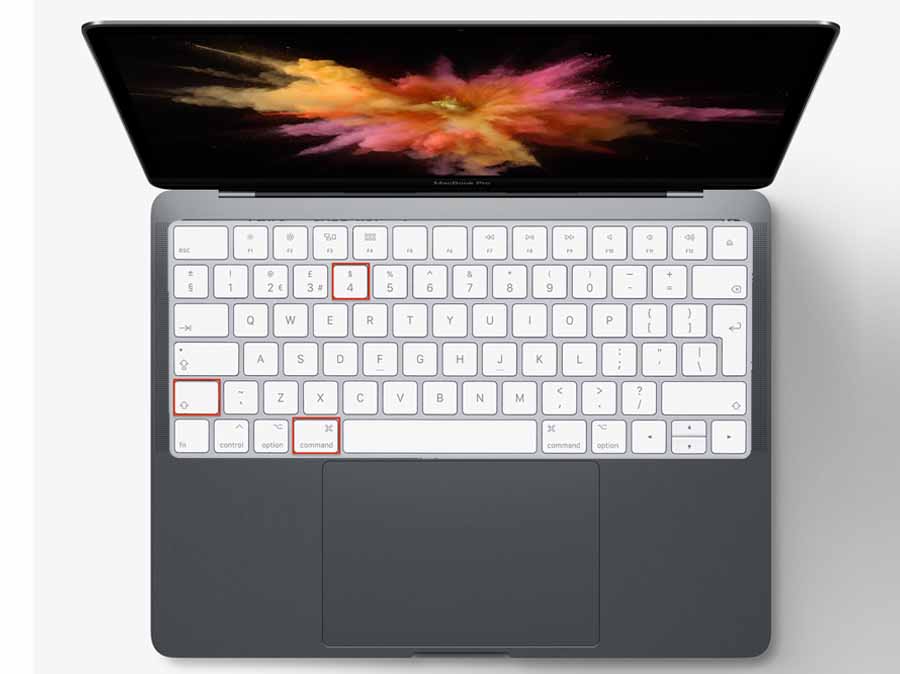
One of the ways in which you can capture an image on your Mac devices is through the keyboard. These are considered as keyboard shortcut where you can just press keys on the keyboard to take a capture of the entire screen. Here are the following steps to take a screenshot:

  1. Press and hold this key together Shift, Command, and 3.
  2. That’s how to capture the full image screen on Mac.

However, in case you see a thumbnail located at the corner of the screen, you can then click on edit or crop the image. However, wait until the screenshot is completed and select the file to save the image on your desktop.

How to Take a Snip of a Portion of the Screen On Mac

The step above allows you to capture the full screen of the image you want to snip. However, if you just want to take a snip of just a little side of the screen. You can use another screenshot on Mac shortcut keys to take a capture of half of the screen.

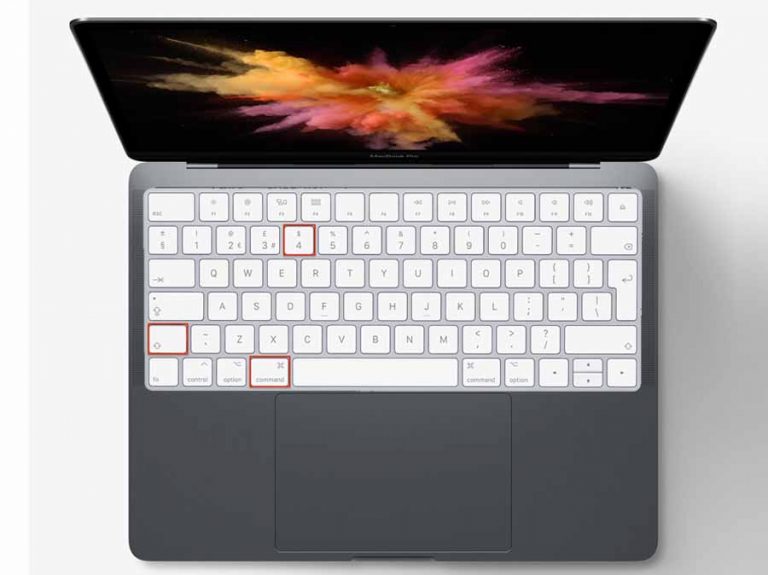
  1. Press and hold these keys together Shift, Command, and 4.
  2. Then, you can drag the crosshair to narrow down the area you want to snap.
  3. Next, to take the shot, you can then release your mouse.

Keep in mind, you can move the selection by pressing and holding the space bar while you drag the image. If you want to cancel the snap you took, you can click Esc and you can start the process again. Likewise, you can edit or crop the screen at the top right corner of your screen.

How to Take Screenshot or Capture a Window or Menu On Mac

There is another screenshot on Mac shortcut that allows you to capture a window or menu. This screenshot is very simple, all you need to do is open the window or menu you wish to snip. Then, you can press and hold these four keys at once Shift, Command, 3 and Space bar. Afterward, the pointer will then change to a camera icon to take a snap. Next you can select Windows or Menu to take a capture of the image. However, if you want to remove the window shadow, you can press and hold the option key to remove shadows from the screenshot.

In summary, if you’re looking to find where your screenshots are located. Based on the default of the system, the name where to find a screenshot is save to your desktop file under the name of Screen Shot (date) at (time).png.” However, you can decide to change the default location where you usually save your screenshots from the Screenshot app menu.

How to Apply for CERB – Canada Emergency Response Benefit

0

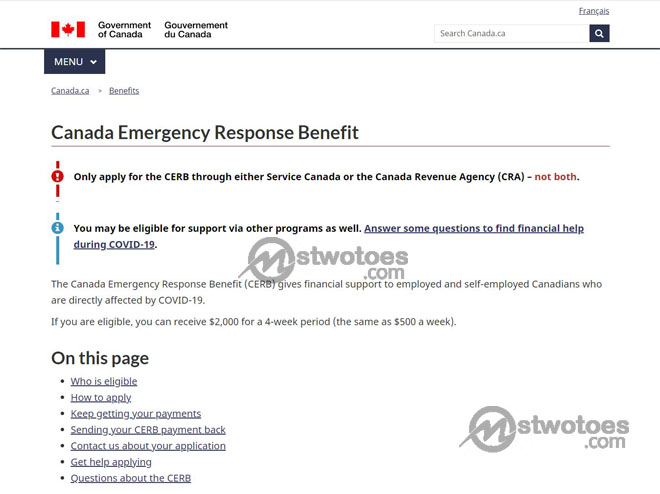
How can I apply for CERB? Or how can I get qualify for CERB benefit? The CERB is known as Canada Emergency Response Benefit which is set by the Canadian government to provides those that are suffering from the COVID 19 pandemic. The CERB offers financial supports to both employed, self-employed, or worker facing hardship with income. In this article, you can find out more information about the qualification for the Canada Emergency Response Benefits and also how to apply for CERB.

How to Apply for CERB - Canada Emergency Response Benefit

Am I Eligible for CERB?

On the contrary, how to apply for CERB need certain requirements users need to be qualified before they can be accountable for the benefits. Moreover, the qualification of the CERB is only available to workers, either employed, self-employed.

  • You need to be a resident of Canada and must be at least a 15-year-old.
  • The CERB is accessible to workers who stopped working duet to the COVID-19.
  • You need to have an income of at least $5000 has a self-employed or employed to a company.
  • CERB benefits are also eligible to people that were sacked or didn’t quit their job voluntarily.

Keep in mind, when submitting your first claim, it said that you can’t earn more than $1500 as employed or self-employed income for above 14 days of four-week benefits period of your claim, likewise when submitting subsequent claims.

How to Determine if I AM eligible for CERB

First of all, in terms of student been eligible for the CERB, post-secondary and graduating high school students might be considered for the Canada Emergency Student Benefits. However, certain scenarios determine if you’re eligible for the CERB. This includes: this will allow you to apply for CERB

  • Expectant mother/parent: You eligible for EI before March 15th, after March, if you lost your job.
  • New mother/parent: if you are a new mother or parent, you can eligible for the CERB.
  • Caring for family members: if you stop working just to take care of your family because of COVID-19. You can apply for the benefit.

There are other scenarios which include Change in job status/income, Canadian abroad, Student, Senior/retired person, and lots more others. These are the requirement that get you started in applying for the Canada Emergency Student Benefits.

How to Apply for CERB

In the term of providing Canadians with funds after applying for the program, CERB joint with Services Canada and Canada Revenue Agency. To provide the qualified applicant the fastest and easiest way to deliver payment. In other to access the application process or to apply for CERB, you need to answer some simple questions in which you need to provide an answer that best determines the service that fits your situation. Visit the link www.canada.ca/en/services/benefits/ei/cerb-application.html and you can answer the question. Under “Determine where to apply” to fill out the question the directs you to the application forum.

How to Solve a Rubix Cube – Tips to How to Solve a Rubik’s Cube for Beginners

0

How can I solve a Rubix cube or what are the tips on how to solve a Rubik’s cube for beginners? In this article, you can learn how to solve a Rubik’s cube for beginners. The Rubik Cube game is a very popular game around the world where you can match up the color of the cube to its normal color. As a matter of fact, it took me a couple of days or even months to be able to solve the Rubik’s Cube. I took my problem to the internet and also watch some videos on how to solve a Rubik’s cube 3×3. Then, I learned the fastest way on how to solve Rubix’s cube. The tips on how to solve a Rubik’s Cube for beginners helps you to get started.

How to Solve a Rubix Cube - Tips to How to Solve a Rubik's Cube for Beginners

Furthermore., the Rubix Cube or Rubik’s Cube, actually a 3-D combination of a puzzle that commonly known as the Magic Cube. However, the Magic Cube invented by Erno Rubik and it won the German Game of the Year as the Best Puzzle. Currently, it’s widely sold worldwide of over 350 million cubes. Thereby, making it the number one best selling of puzzle game and also toy in the world. See the steps on how to solve a Rubix Cube below.

Tips on How to Solve a Rubik’s cube for Beginners

First of all, there are different methods on how to solve a Rubix Cube, and all this method depends on the level of difficulties. This comprises speedcubers, beginners, or even solving the cube blindfolded. Many people get stuck after going past the first face in solving the Rubik’s Cube. Here is the following cheat on how to solve a Rubix Cube:

  1. White Cross: start with the white face and ensure that the white square box cross paying attention to the other colors at the side center.
  2. White Corner: in this aspect, you need to complete or arrange all the white boxes on the first face.
  3. Second Layer: after completing the first two layers, you can make use of a mathematical method. This the symmetric algorithms to go to the next stage. This actually known as the Right and Left algorithms.
  4. Yellow Edges: after ensuring that you complete the cross box of the yellow color on the top. Then, you need to ensure that the edge pieces match its exact color on the side centerpiece.
  5. Yellow Corners on their places: for this stage, you just need to ensure that all the Yellow boxes are on the right post.

Lastly, now that all the boxes are in the right place in which they are supposed to be. Then, you can ensure that all corners of the colors are complete. I know that some of you will find it difficult to the following cheat. To play the Rubik’s Cube game or how to solve a Rubix Cube.

Alternative Method on How to do a Rubix’s Cube

In others to find pictures and broken step-by-step instructions, the owner of the game also provides an instruction manual where you can visit the method to solve the Rubik’s Cube. Simply visit https://ruwix.com/ and you can select whatever Rubik’s Cube game you want to solve. This includes Notation, Advanced Solution, Online Cube Solver, Patterns, Pop Culture, and more.

How to know if you have Coronavirus – Coronavirus Symptoms

0

How do you know if you have coronavirus or COVID-19 or how do you know if someone has corona? On the contrary, this has been the most recent question asked by billions of people around the world. As many of us are aware that it isn’t safe to travel around the world or even move around based on the spread of the virus. Approximately, the entire world is affected by this pandemic and there is a safety precaution in which you can take to keep yourself and family safe.

How to know if you have Coronavirus - Coronavirus Symptoms

What is Coronavirus?

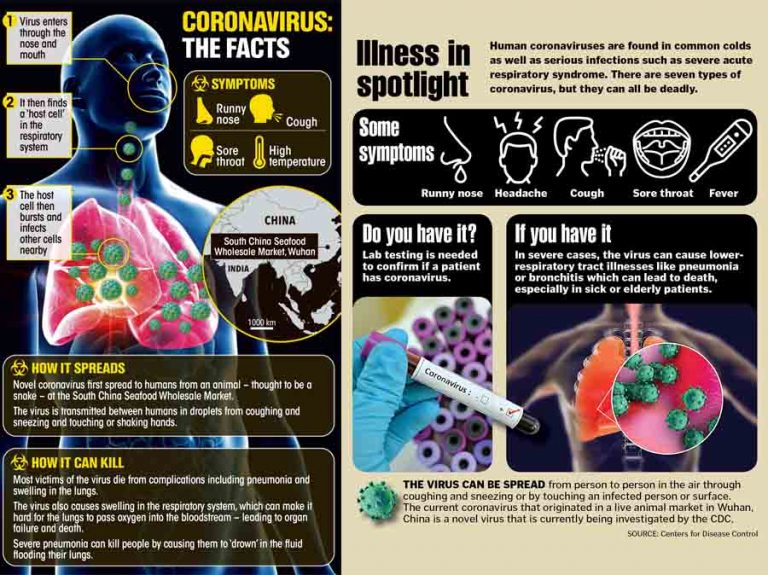
Based on the information provided by the WHO, Coronavirus is known to be a large family of higher viruses that can be found in animals which can cause illness to both human beings and animals. Based on the Human structure and system, the Coronavirus affects the human respiratory system thereby causing respiratory infections that includes common cold to other ranges of diseases that include MERS (Middle East Respiratory Syndrome), SARS (Severe Acute Respiratory Syndrome) and more. However, the recent coronavirus cause of the coronavirus diseases been discovered spreading out-sketch of the worlds is the COVID-19.

What is COVIV-19

On the contrary, the COVID-19 is apparently an infectious disease of the Coronavirus which is set to be a pandemic disease. This means that, the method of the diseases spreading is every wide and makes it an airborne disease. The COVID-19 virus disease has actually been in existence but was unknown and the outbreak of the disease began in Wuhan, China in December 2019.

How to Know if You Have Coronavirus | Symptoms of COVID-19

Furthermore, COVID-19 actually affect people in different ways and different human body system. Most of the people affected by the virus, the symptoms start from mild to moderate symptoms. However, are some of the common systems to known if someone has COVID-19.

How to know if you have Coronavirus | Common Symptoms of COVID-19:

  • Fever
  • Dry cough
  • Tiredness

Some Symptoms most people experience:

  • Aches and pains
  • Nasal Congestion
  • Runny nose
  • Sore throat
  • Diarrhea

These following symptoms start from mild to more complexion suitable. This is why, it’s advisable that early detection actually helps reduces the symptoms from upgrading. The government has actually declared a lockdown so as to maintain the spread of the virus.

What Should you do if you think you have the Coronavirus Disease?

On the contrary, there are certain applications and protective measures you need to follow to fight against the new coronavirus disease. It’s stated that most people actually recover from the disease without need hospital treatment.

  • Wash your hand with soap and water every 4 minutes.
  • Stay away from social gatherings.
  • Don’t; touch your eyes, nose, and mouth.
  • Wear a nose mask.

Above all, if you know you have the virus, you need to self-isolate yourself and ensure no-bay comes with contact with somebody. Also, you can use the call line to contact your country’s Disease control center to report your case. GOD bless you all and protect you & your family from this disease AMEN.

Cartoon Yourself – How to Turn Yourself into a Cartoon | Cartoon Yourself App

0

How can I make a cartoon character of myself? How to make a cartoon of yourself is simple, nowadays, many people actually don’t seem to go into creating a real photo of themselves. Instead, turn their real-time photo to cartoons characters of themselves. However, if you’re looking for an application that allows you to turn yourself into an animation. In this article, we will highlight some of the cartoons yourself app on how to turn yourself into a cartoon.

Cartoon Yourself - How to Turn Yourself into a Cartoon | Cartoon Yourself App

Furthermore, there are lots of designed application that allows you to use your real photos to represent yourself as cartoons or an avatar. Initially, there a free and paid app where you can make a cartoon of yourself. Moreover, photos and videos are the two factors that increase your awareness and also your followers. Instead of snapping pictures and post them on social media, there are hundreds of avatar apps that offer free online caricature makers and a sketch effect where you can make your picture an avatar. However, you can view the lists of apps to make cartoon of yourself.

Top 5 Apps to Create Cartoon of Yourself for iPhone

On the contrary, taking a nice picture at a convenient spot actually makes it easy to create a better avatar. There are lots of selected number that allows you to take a nice composed shot where you can use the cartooning features to produce an interesting result. Here is the list of interest carton yourself apps to use

ToonCamera

One of the applications to make an animation of yourself is ToonCamera. The app is most effective on the iPhone and allows you to make your picture an anime of yourself through the provided feature on the app. Not only does the app turn your picture to cartoons but it also transforms your world into an animation. You can download the ToonCamera App from the App Store on your iPhone.

Clip2Comic & Caricature Maker

This is another application that allows you to make yourself a cartoon but in high quality and high-resolution images. The cartoonist editing app transforms your real-time picture to funny cartoons, caricatures, and sketches on your iPhone or iPad. However, you can use Clip2Comic for free or opt for the premium plan.

Sketch Me! Sketch&Cartoon

On the contrary, Sketch Me! Sketch&Cartoon is another fascinating application that turns your picture into cartoons, sketch images, or drawing witch just a click of the button to create an instant work of art.  There are over 19 effects that allow you to make your face an anime.

Photo to Cartoon Yourself Edit

This is also a photo editor maker creator app that allows you to create an impressive anime filter on your image. The application actually converts your photo to cartoons by using the free features that enable you to convert to your image into animation.

Moment Cartoon Caricature Cam

This is another application if you want to make yourself into an anime, you can also use the Moment Cartoon Caricature Cam. The application is integrated with a magical effect on its camera that turns pictures to cartoons. You can use the application for free and you can work with the tools to make cartoons character.

List of Best Photos to Cartoon Yourself App for Android Devices

The following list of devices mentioned above allows you to create a cartoon version of yourself on the iPhone and iPad. However, the following animation apps are also compatible with Android devices as well. Other devices you can also consider to use includes:

  • Cartoon Yourself app
  • Painnt – Art & Cartoon Filters
  • MomentCam Cartoons & Stickers
  • Cartoon Photo Editor
  • Prisma Photo Editor
  • Cartoon – Cartoon Photo Editor

All the following applications are accessible on the Google Play Store and App Store where you can download the app to create cartoons of yourself. Also, you can try out the FilmoraPro video which is editing software that allows you to cartoons yourself.